A laptop that charges at home but loses battery at your office hot desk does not automatically need a new charging port. We would test the power path first. A dock, a cable and an adapter can each be the weak link, even when every plug fits.
If your USB-C laptop is not charging, start with the checks below before buying a battery or authorising board work. This guide is for laptops designed to accept USB-C charging, especially Windows machines. A USB-C socket by itself does not establish that a laptop can charge through it.
Check whether that port accepts power
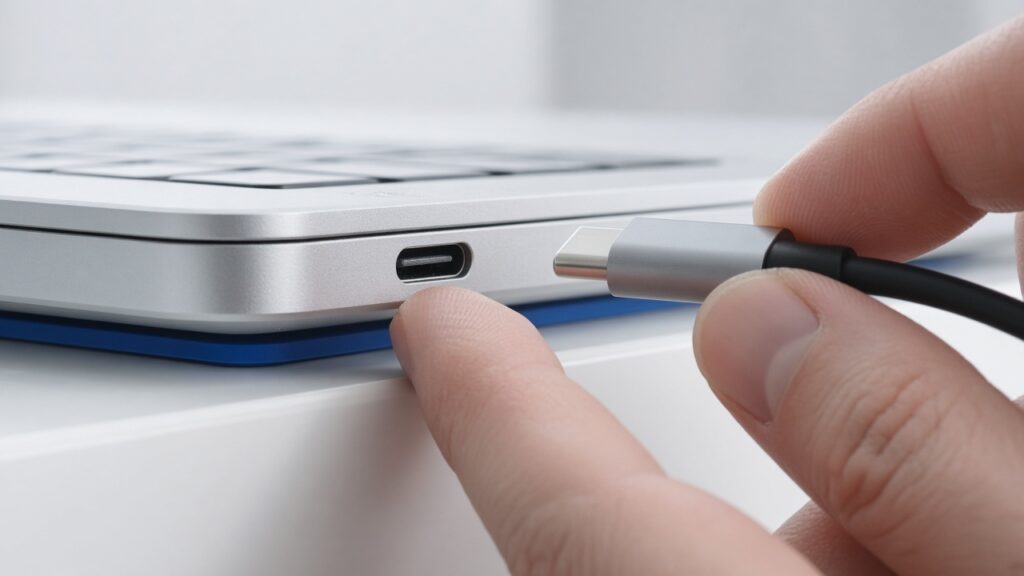
Find the exact model’s manual or manufacturer specification. Some USB-C ports handle data or video but are not charging inputs. If the laptop has several ports, confirm which one accepts charging rather than trying to force the connector or assuming the most convenient side is correct.
Microsoft’s USB-C troubleshooting guidance lists an incompatible charger, insufficient power, an unsuitable cable, the wrong port and an intervening hub or dock as possible causes of charging warnings. That is a useful starting point because none of those automatically means a failed motherboard.
Use the right adapter and cable together
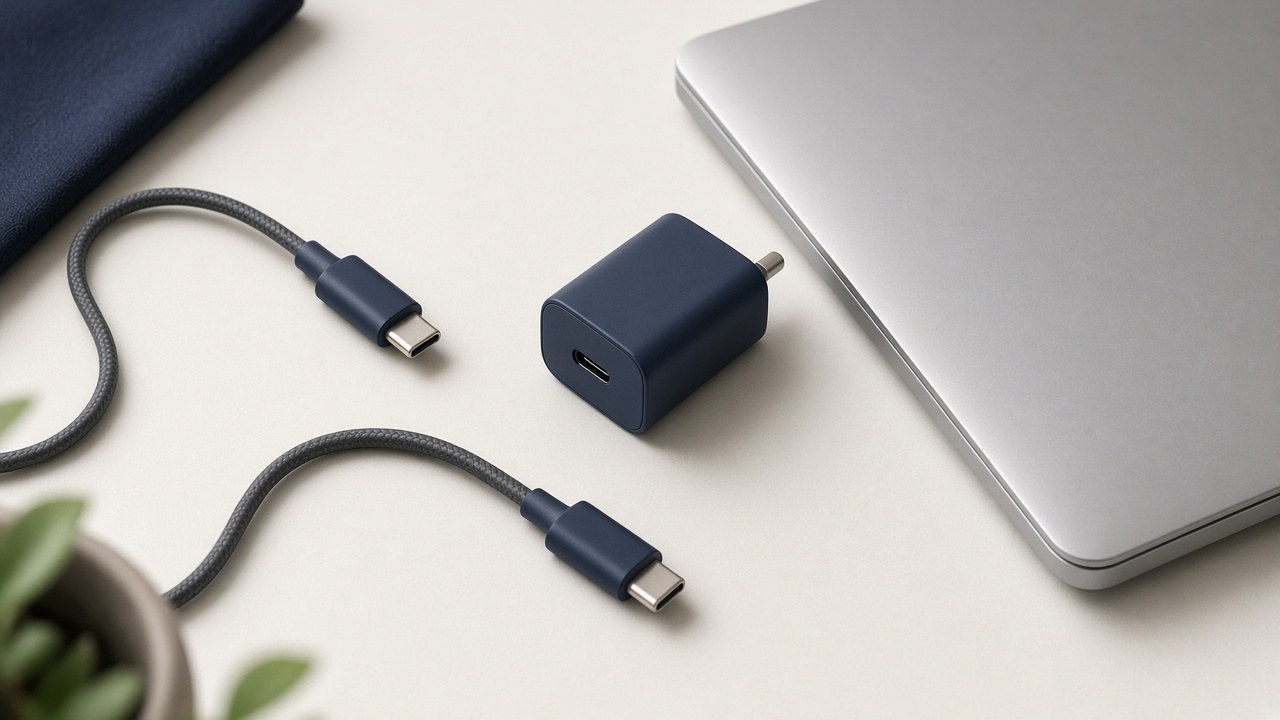
For a dry, undamaged laptop, use the manufacturer-recommended charger and a compatible cable with the power rating your model needs. Connect directly to a working wall socket and the correct laptop charging port. Leave the dock, monitor and hub out of the first test.
Do not judge compatibility only by the biggest wattage printed on a multi-port charger. Check the output available from the port you are using, the required USB Power Delivery profiles and the cable’s rating. The power available may change when you connect another device. The charger’s own specification is more useful than its marketing headline.
A charging icon does not settle the question
A laptop can recognise external power and still lose battery during demanding work if the available supply is inadequate. Conversely, a laptop that pauses charging near a configured battery limit may be behaving as intended. Check the manufacturer’s battery-care settings before treating a pause as a fault.
Note the exact warning, whether the battery percentage rises while the laptop is idle, and whether the same setup worked previously. Do not drain the last of the battery running repeated tests. If it still boots safely, save your work and make a backup before continuing.
| Observation | What to check next |
|---|---|
| Charges directly, not through the dock | Dock power supply, cable and power-delivery specification |
| One compatible cable works, another does not | Cable rating and condition |
| Battery falls only under heavy load | Available charger output and model power requirements |
| Stops at a configured charge limit | Manufacturer battery-care settings |
| Charging cuts out with normal cable movement | Connector or port damage; stop moving it and get it assessed |
Know when to stop the home tests
Stop if there is liquid exposure, a burnt smell, unusual heat, a swollen case or visible damage to a connector. Do not insert metal tools into the port, bend a plug to keep it working or open a mains adapter. A cable that must be held at an angle is not a permanent fix.
If a correct, known-good charger and cable still do not work, the fault could involve the port, battery or internal power circuitry. Those possibilities need testing. We would not tell you to buy a battery solely because Windows says “plugged in, not charging”.
Bring the setup that fails
For our laptop repair assessment, bring the charger and cable as well as the computer. Bring the dock too if the problem only happens through it. For an Apple laptop, use our MacBook repair enquiry and give the exact model; the same connector can hide a different power setup.
If you work in the CBD, our earlier Tanjong Pagar laptop repair guide gives the branch context. North-side customers can use Woodlands instead. Explain what you have already tested so the workshop does not repeat it blindly.
FAQ
Can a phone charger charge my USB-C laptop?
Only if the laptop supports charging through that port and the adapter and cable meet its power requirements. A fitting plug is not enough.
Does “not charging” mean I need a new battery?
No. The charger, cable, dock, port and battery settings can all affect charging. Test the compatible power setup before replacing parts.
Should I update the BIOS while the laptop keeps losing power?
Do not start a firmware update with unstable power. Follow the manufacturer’s instructions and get the charging problem assessed first.
Ask before buying replacement parts
Send the laptop model, adapter output details and the exact message through our free online diagnosis. Leave passwords and recovery keys out of the photos. A clear description can save an unnecessary purchase.
Our contact page lists International Plaza, 10 Anson Road #02-71, and Woods Square Office (Tower 1), 12 Woodlands Square #10-62. Tanjong Pagar opens Monday to Saturday, 11am–7pm, closed Sundays and public holidays. Confirm your preferred branch and slot before travelling.