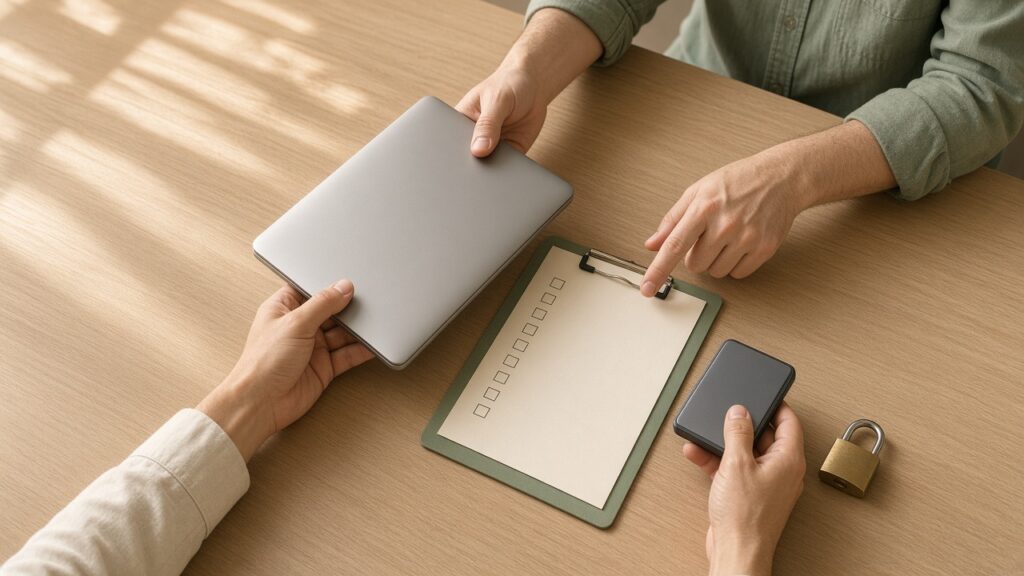
Before you hand a laptop or phone to a repair shop, think about what is on it, not just what is broken. Work documents, family photos, banking apps and signed-in browsers deserve a plan. We do not think “just give us every password” is a good starting point.
This is our practical guide to data privacy before device repair in Singapore. It is about preparing for a normal repair, not recovering already-lost files. If the device is wet, swollen or failing badly, stop using it and tell the technician that the data matters. A backup attempt is not worth making a dangerous device worse.
Check a backup, do not just assume one exists
If the device works safely, confirm the date of the latest backup and open a few important files from the backup destination. Seeing a cloud app icon does not tell you whether every folder has finished syncing. School projects in Downloads and a folder on the desktop may need different handling from photos already stored online.
Do not start a factory reset merely because you are taking the device for repair. Erasing may be appropriate for a particular handover, but only after you understand the repair requirements and have a verified backup. If the files are already missing or the storage behaves badly, our earlier laptop data recovery guide explains why repeated writes and recovery experiments can make matters worse.

Ask what access is needed for this particular job
A workshop may need an unlocked session to reproduce a software fault or test some functions after a hardware repair. That does not mean it needs your email password, banking PIN, two-factor codes or password-manager master password. Ask which test requires access and whether you can enter the passcode yourself while present.
Apple’s service-preparation guidance says never to give anyone your Apple Account password, device passcode or account security details, and to remain present if you enter credentials for software support. It is guidance for Apple’s service process, not proof that every independent shop follows the same procedure. We think asking for the narrowest necessary access is sensible wherever you go.
For a computer, ask whether a temporary local test account will suit the agreed work. It will not answer every diagnostic question, and it is not a substitute for a backup or encryption. Do not put passwords in a booking note or send them in a photo of the keyboard.
Keep encryption recovery keys under your control
Before laptop board or firmware work, find out whether BitLocker or FileVault is enabled. If the machine belongs to your employer or school, ask its IT team before allowing an outside workshop to open or reset it. Your organisation may have its own repair and data-handling rules.
Microsoft’s BitLocker recovery-key guidance explains that hardware or security changes can prompt a recovery-key request. The key may be stored in your Microsoft account or your organisation’s account, and Microsoft cannot recreate a lost one. Check that you can retrieve the right key from another device. Do not paste it into an ordinary repair enquiry; agree on a secure, necessary access arrangement if the repair actually needs it.
| Before handover | Why we suggest it |
|---|---|
| Verify a recent backup | A repair or replacement is not a data-preservation guarantee |
| Photograph condition and note the serial number privately | Gives both sides a clear handover record |
| Remove unneeded SIM, memory cards and accessories | Avoids handing over unrelated items and data |
| Agree on account access and reset permission | Prevents “testing” from becoming open-ended access |
| For work devices, obtain IT approval | Keeps the repair within your organisation’s rules |
Write down the boundaries before work starts
Ask for a job record stating the fault, the device, the accessories handed over and the work authorised. If you do not consent to a reset, operating-system reinstall or storage replacement without another discussion, put that in writing. A lower repair bill is not a good outcome if a usable backup never existed.
If an account-security feature must be changed for a particular service, use the provider’s current instructions and make the change yourself. Do not turn off security features simply because an unsolicited message says your repair is ready. Contact the shop through the details on its own website if anything looks unusual.
Do the return checks before you leave
Test the original fault and the functions that were part of the repair. Check that your files are where expected. Remove any temporary test account when it is no longer needed, restore any security settings you changed and continue normal backups. If you shared a temporary credential, replace it. Keep the invoice and the written warranty terms.
FAQ
Must I give a repair shop my Apple Account password?
No. Apple says not to share Apple Account passwords or account security details. Ask what the service needs and enter necessary credentials yourself while present.
Should I wipe my laptop before repair?
Not automatically. Verify a backup and agree on the work first. A reset can destroy data and may not be needed for the fault.
What if the device will not turn on?
Tell the workshop that you cannot back it up and whether data preservation is the priority. Do not authorise a reset or replacement without understanding the consequences.
Tell us the fault, not your passwords
Use our free online diagnosis for the symptoms and model. Choose laptop repair, iPhone repair or iPad repair for the relevant service. If data is the main concern, start with data recovery and explain that before any repair is authorised.
Our contact page lists International Plaza, 10 Anson Road #02-71, and Woods Square Office (Tower 1), 12 Woodlands Square #10-62. Tanjong Pagar opens Monday to Saturday, 11am–7pm, closed Sundays and public holidays. Confirm your preferred branch and slot before travelling.