We would not wipe a laptop just because a website says it has a virus. We would also not promise a quick cleanup when the machine cannot be trusted. Those are different mistakes with the same outcome: the customer pays for a decision nobody properly explained.
For virus removal in Singapore, the useful question is whether a targeted cleanup can restore confidence in the computer, or whether a clean Windows installation is the more sensible route. Your files, application setup and account security all matter to that decision.
A warning pop-up is not a diagnosis
Slow performance, browser notifications and a crashing application do not prove a malware infection. Do not call a number in a warning page, pay it or let an unknown person connect remotely. Record the warning without clicking its download or “fix” button, then seek help through a provider you chose independently.
If you suspect an active compromise, stop banking or entering sensitive passwords on that computer. For a company laptop, contact your IT team rather than independently erasing it. If ransomware or an important business incident is suspected, isolate the device from networks and seek qualified incident-response advice before altering evidence or reconnecting backups.
Start with a trusted security check when it is appropriate
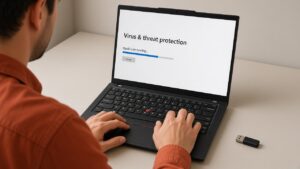
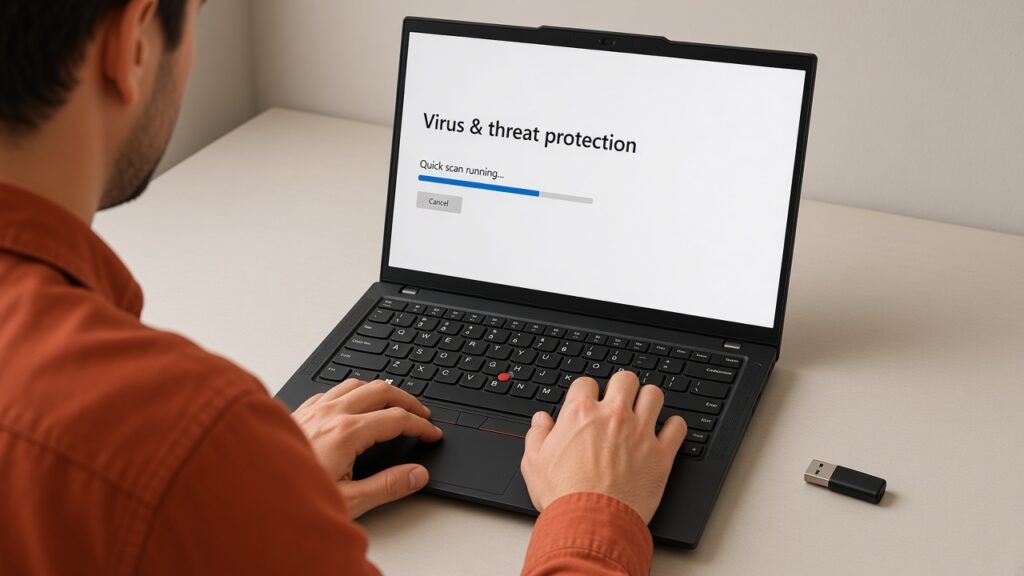
On a normal personal Windows computer without signs of an urgent incident, use the built-in Windows Security tools rather than a cleaner advertised by a pop-up. Microsoft’s Virus & threat protection guide explains the difference between quick, full, custom and Microsoft Defender Offline scans.
The offline scan restarts the computer and runs outside the normal Windows session, which can make persistent malware harder to hide. Save work first and follow Microsoft’s instructions. Review Protection history afterwards. A scan result is evidence to consider, not a promise that stolen passwords or every security consequence have been undone.
Cleanup and reinstall solve different problems
A targeted cleanup aims to remove the identified problem while retaining the existing Windows setup. It may suit a limited issue that can be confidently identified and removed. It is less persuasive when threats keep returning, security tools have been disabled or the operating system has been substantially altered.
Microsoft’s persistent-malware guidance recommends an offline scan for recurring detections and discusses resetting or reinstalling when malware has caused irreversible changes. Its Windows recovery guide distinguishes recovery methods: a clean installation removes personal files, applications and settings from the selected drive. “Reinstall” is not shorthand for “everything will stay exactly as it was”.

| Option | What to clarify before agreeing |
|---|---|
| Targeted cleanup | What was detected, what was removed and how the result will be checked |
| Offline security scan | Restart requirements and where to review the results |
| Reset with a file-retention option | Which files are kept and which apps/settings are removed |
| Clean Windows installation | Backup, erasure permission, drivers, activation and application reinstall plan |
| Suspected company compromise or ransomware | IT or incident-response handling before routine repair |
Back up carefully, then protect the accounts too
Agree on a backup plan before any erasure. Where possible, use a known-good backup from before the suspected infection and check files before restoring them. Do not immediately copy back unknown programs or scripts that may have caused the problem. A backup attached during an infection may also have been affected.
If passwords or sessions may have been stolen, use a separate trusted device to review affected accounts, change credentials and follow each provider’s security guidance. Reinstalling Windows on the laptop does not automatically sign an attacker out of an online account. Our repair privacy guide explains how to set access and reset boundaries with a workshop.
Ask what the repair quote actually covers
A scan, malware cleanup, file backup and a complete reinstall are different pieces of work. Ask which are included, whether applications must be reinstalled, and what happens if the diagnosis points to a failing drive instead. Our laptop and desktop repair services are starting points for software-fault enquiries, not a promise that every warning needs paid repair.
Prices vary by model, parts and the work needed. Contact or visit RepairX for the current price before booking.
FAQ
Does a slow laptop mean it has a virus?
No. Storage, memory, heat and ordinary software faults can also cause slow performance. Establish the cause before choosing a remedy.
Will a clean Windows install keep my files and apps?
A clean installation removes files, applications and settings from the selected drive. Other recovery methods behave differently; agree on the exact method and a verified backup first.
Does reinstalling Windows fix stolen account passwords?
No. If credentials or sessions were compromised, review the affected accounts from a trusted device and follow their security-recovery instructions separately.
Describe the symptoms before authorising a wipe
Use our free online diagnosis and describe what changed, any trusted security detections and whether you have a backup. For ordinary software errors rather than confirmed malware, our software troubleshooting guide is related reading. We would rather explain the least disruptive sensible option than erase first and ask questions afterwards.
Our Tanjong Pagar branch is at International Plaza, 10 Anson Road #02-71, and opens Monday to Saturday, 11am–7pm, closed Sundays and public holidays. We also have a Woodlands branch at Woods Square Office (Tower 1), 12 Woodlands Square #10-62. Confirm your preferred branch and appointment before travelling.